How to Use (v0.8.8)
How to Use (v0.5.0)
How To Buy Bitcoins Using RoboSats: Fastest KYC Free Sats In The West
Athena Alpha’s full guide walks you through the full buying process step-by-step. It also answers any extra FAQs you might have and helps outline how brand new Bitcoin Beginners can get the deposit needed to make their first trade.
Learn How To Use RoboSats P2P Exchange
QnA’s guide explains the importance of noKYC Bitcoin, breaks down some RoboSats jargon, gives a full feature explanation and a step by step guide to completing your first trade with RoboSats.
How to Use (v0.1.0)
Full tutorial in tweets by @simplestBTCbook
Enjoy this detailed new @RoboSats Tutorial! pic.twitter.com/CiizGINQ4f
— SimplestBitcoinBook -Get ur 🔑's into Cold Storage (@SimplestBTCBook) October 23, 2022
Read full tweet thread without clutter and tracking in Nitter
RoboSats is focused on user friendliness. The platform is totally self-explanatory, so one could say a tutorial is really not necessary. However, it really helps to feel comfortable when trading if you already know what are the next steps to come so nothing surprises you. After all, bitcoin p2p exchanges are very intimidating! Fear no more, RoboSats keeps it really simple and you simply cannot do things wrong! :D
This document has two complete walkthroughs: 1) as a buyer that takes an order and; 2) as a seller that makes an order. Given that the platform explains to the user exactly everything in the menus, we are going to dedicate some lines to some tricks and give tips for safe trading in between.
Garage Key and Robot Generation
RoboSats helps users preserve their privacy by using a newly generated robot avatar in every trade. All your robots are derived from a single Garage Key, one master key that generates unlimited deterministic accounts.
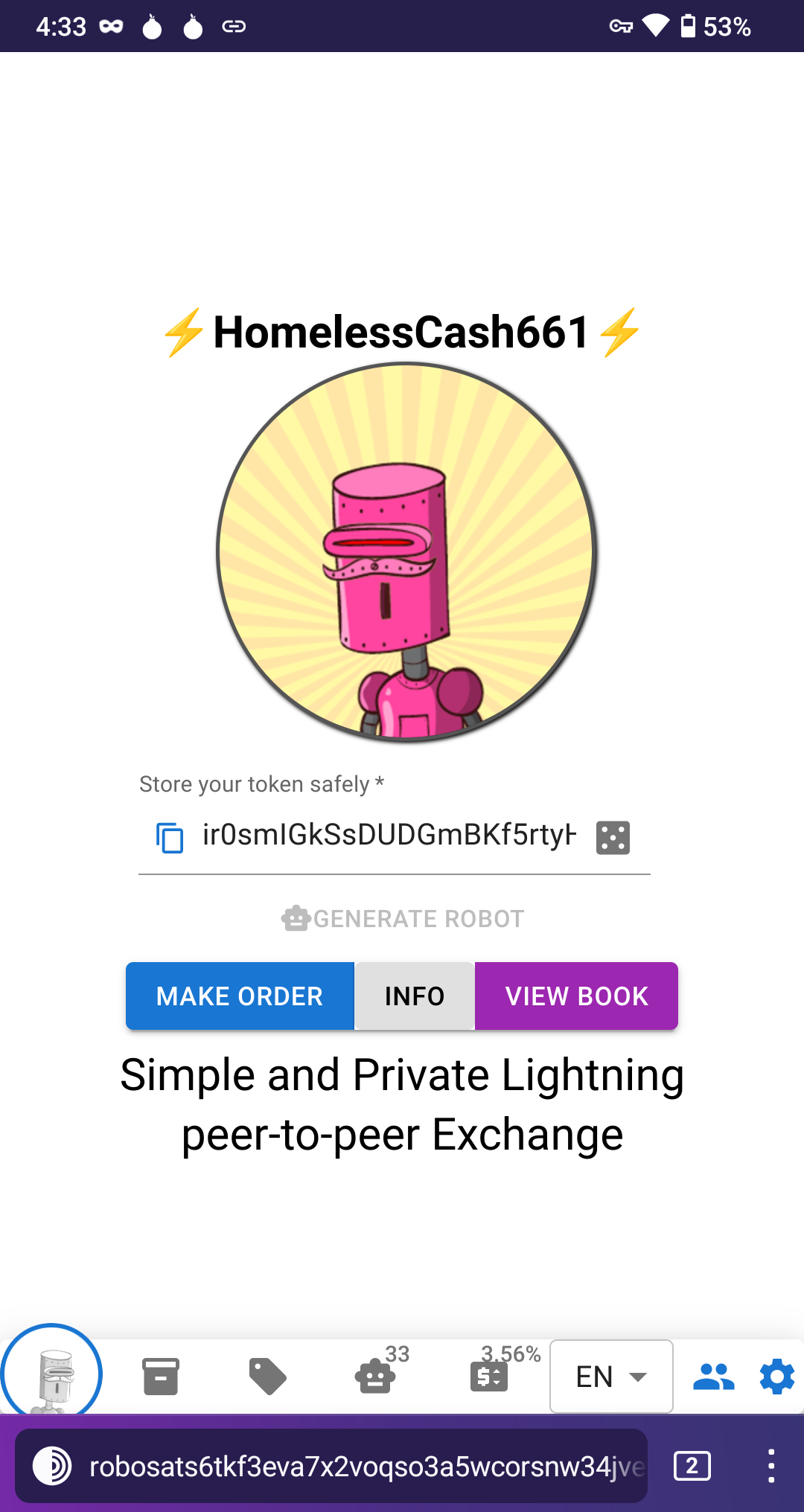
RoboSats welcomes you by asking you to create or import your Garage Key. This key is all you need to recover your entire Garage in the future, so make sure to back it up safely! Write it down on paper or keep it in a password manager. Anyone with the key controls all your robots.
The Garage Key is generated in your own browser. Once set, the app automatically derives the next free account and creates a fresh robot for every trade. No more saving a different token each time!
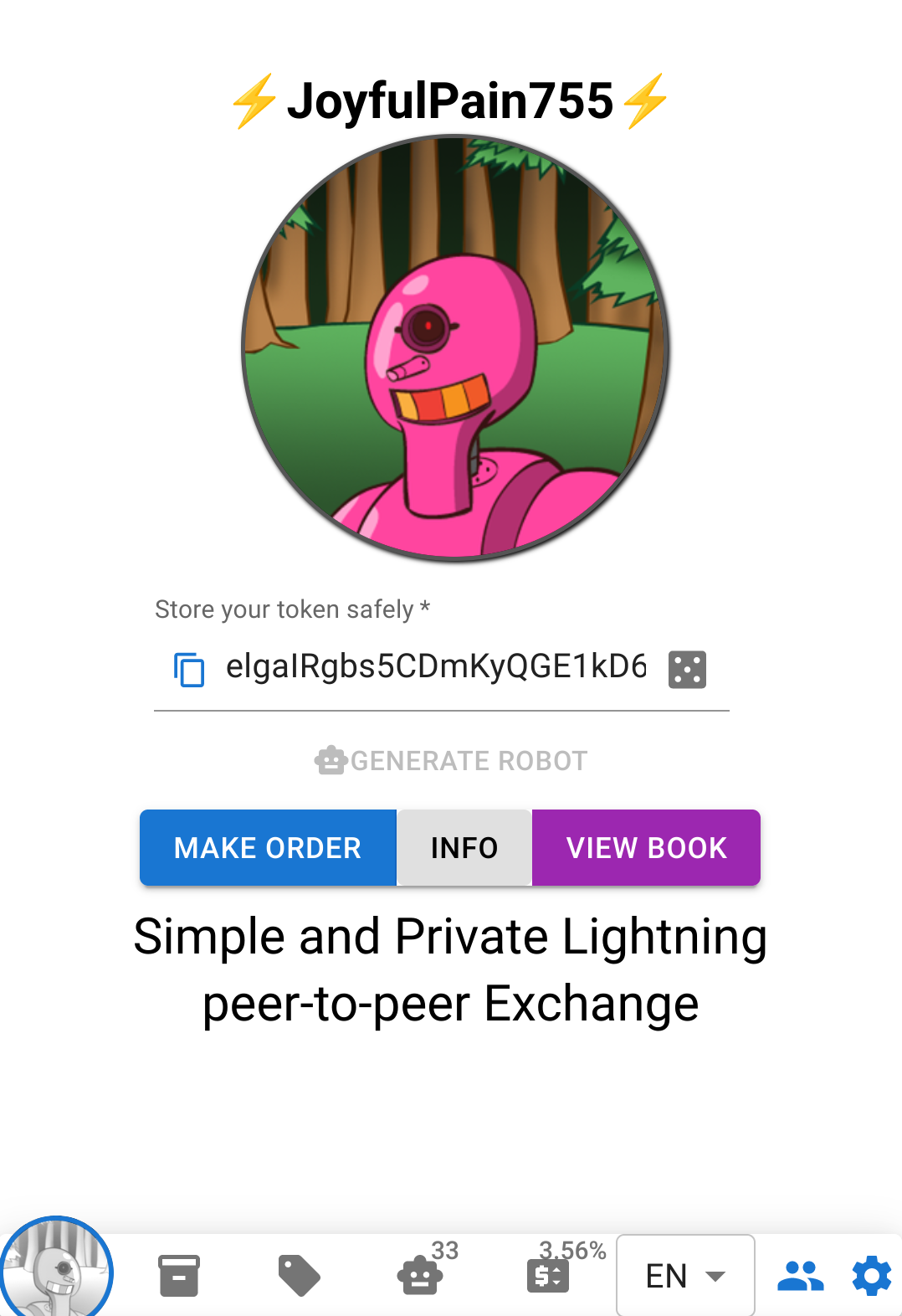
In your profile you can browse your accounts with the Account Navigator: past robots, active robots and the next fresh identity. When a robot finishes a trade, that account is marked as used and the app nudges you to move to a new one. Robots that already traded cannot make or take new orders, protecting your privacy by default.
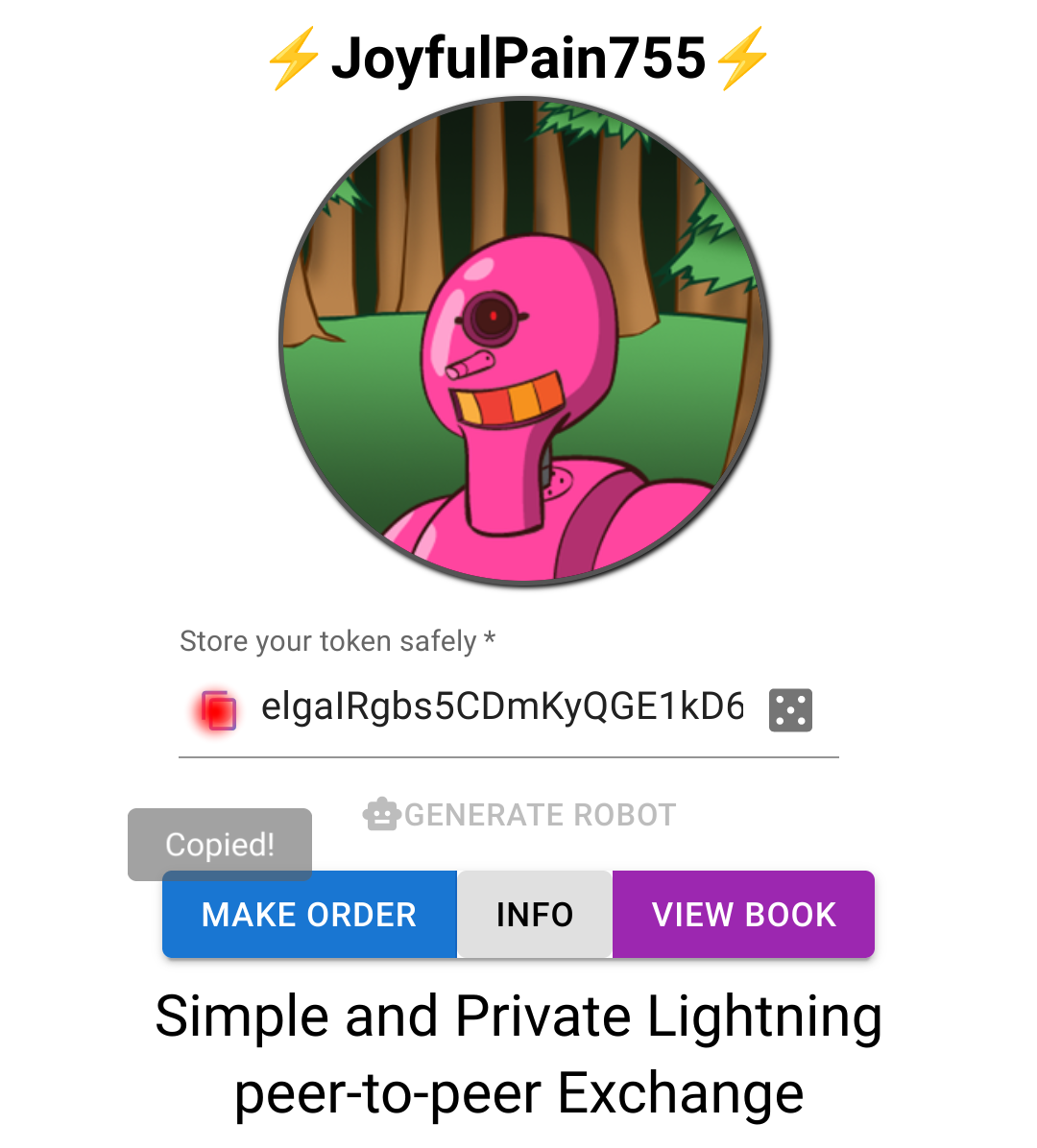
If your browser crashes, your phone battery dies, or you lose connection during trading, your Garage Key is all you need to log in again and continue the trade!
Recovering your Garage
To recover, simply paste your Garage Key in the recovery screen. The app checks the Nostr relays, discovers your used accounts, and restores your robots automatically; including any robot with an active trade.
Legacy mode
If you updated from an older version, the app starts in Legacy view. This mode exists only to let you finish ongoing trades with your old per-robot tokens. “Create Order”, “View Book” and the onboarding actions are disabled with explanatory messages. Finish your pending trades, then create your Garage Key.
Trade
In RoboSats you can make new orders or take orders made by others. Your Garage automatically provides a fresh robot for each trade. To be an order maker simply click on “Create Order”. To take an order, click on “View Book” so you can explore the orders created by other robots.
Exploring the Order Book
We click on “View book” and have a look at the orders in the book page.
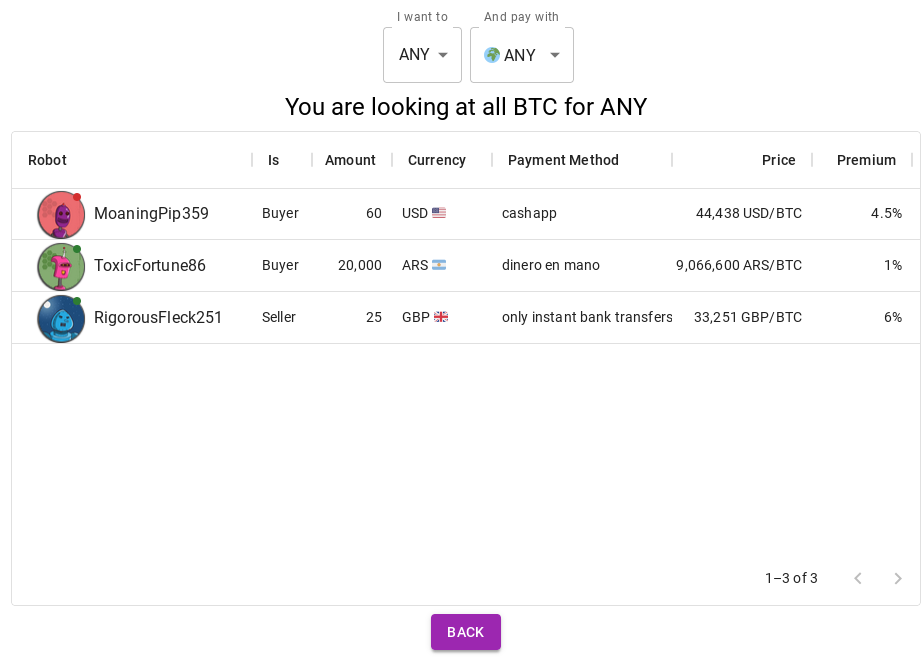
On a desktop browser, you can see at a glance all of the revelant information about the orders so you can decide which one to take. By default, the book will show “ANY” type of order (buy and sell) and “ANY” currency. Use the drop down menus at the top to select your preferences.
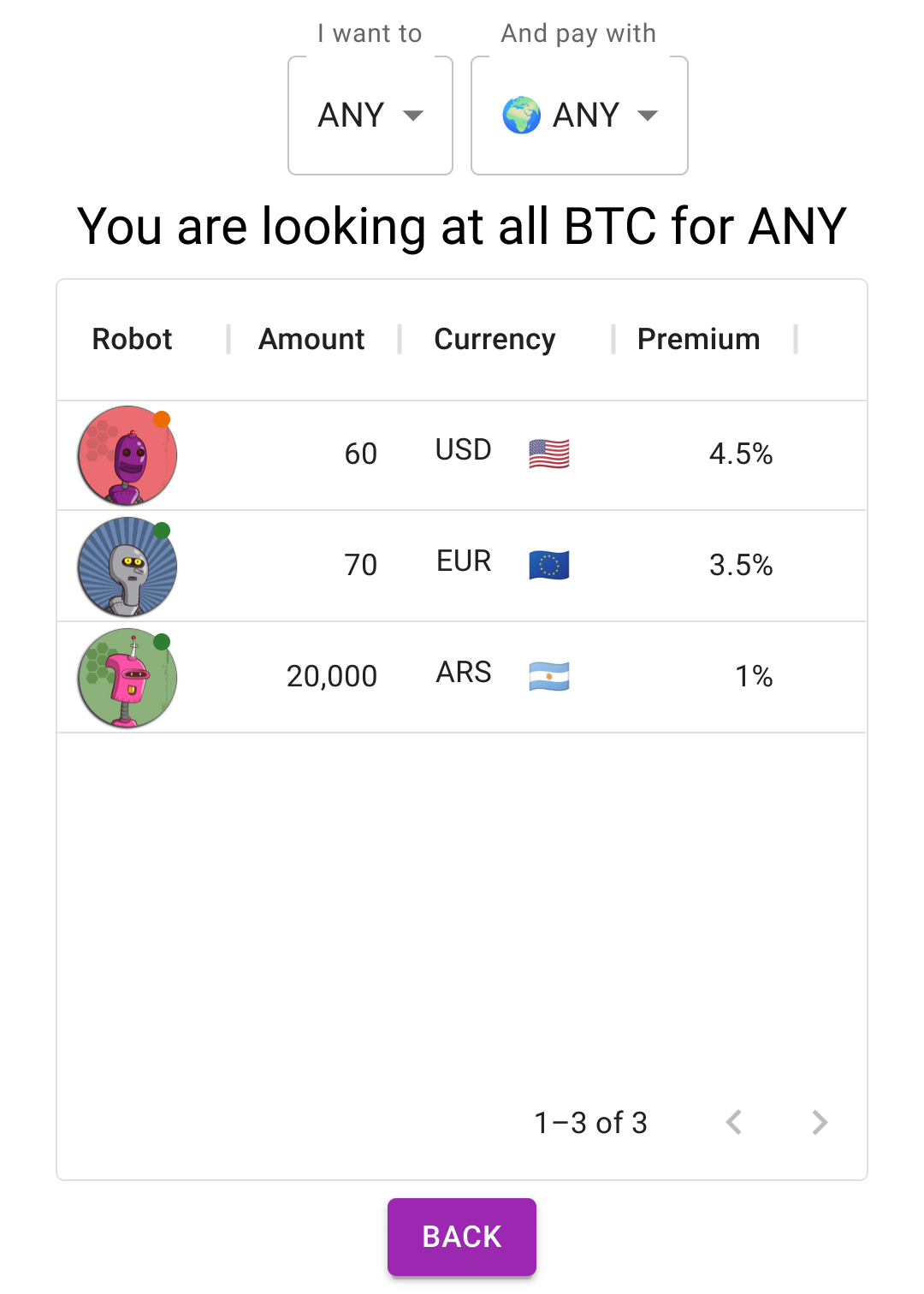
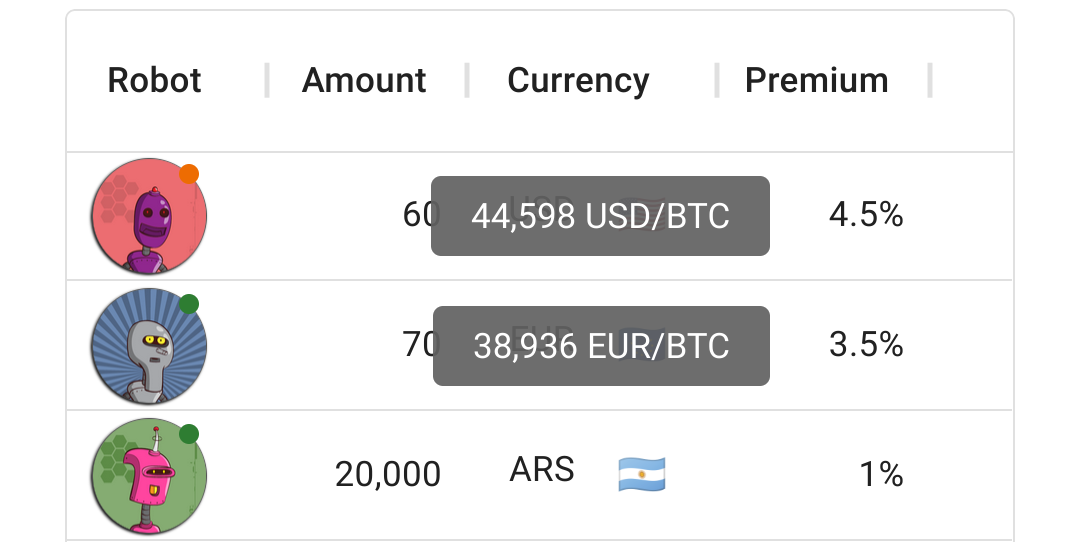
On a smartphone, however, not all of the columns fit on the screen. The nicknames, the type of order, the payment method and the exchange rate are hidden by default. You can tap on any column and tap “Show columns” to select what columns to make visible.

Another trick is to do a long tap or a swipe:
- On Avatar: you get Nickname and Activity status.
- On Amount: you get whether the maker is a seller or a buyer.
- On Currency: you get the preferred payment methods.
- On premium: you get the current exchange rate. Example of long tapping/swiping above the currency:
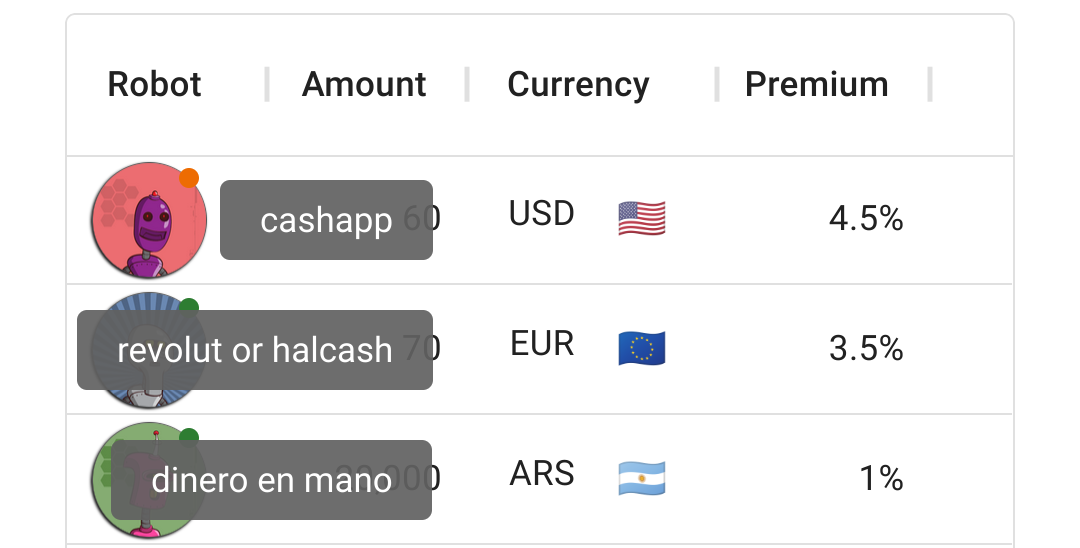
Example of long tapping/swiping above the premium:
You can also tap on any order to see the full order page:
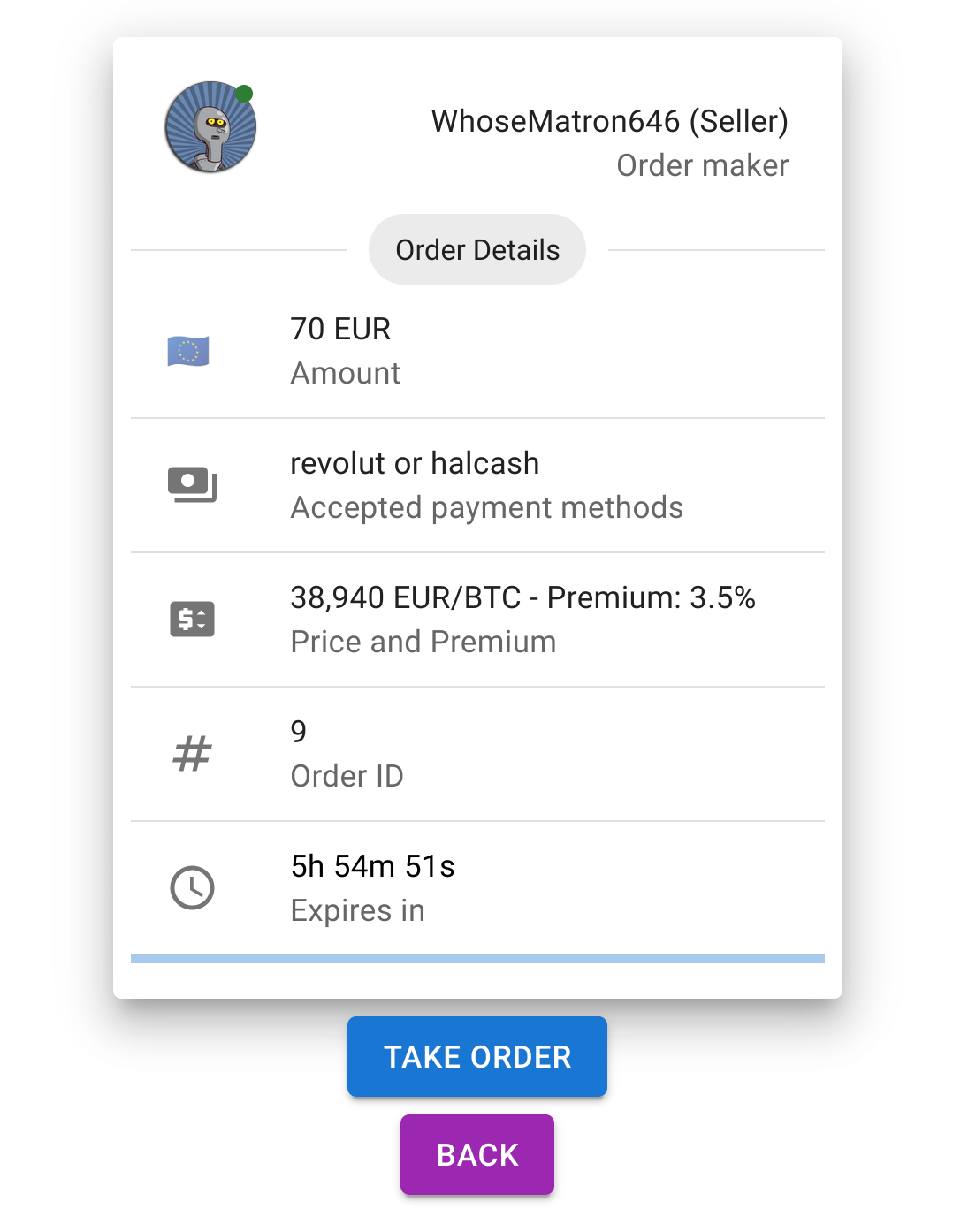
Every order has an expiration counter. By default, new orders will stay public in the book for 24 hours.
Walkthrough-1: Taking an order as a buyer
When you are decided for an order to take simply tap the “Take Order” button. You will see the contract box. Follow the contract box indications until you complete the trade! :)
First thing is to lock a small fidelity bond (just 3% of the trade amount by default), so the seller knows you can be trusted. The satoshis in this bond will just freeze in your wallet. If you try to cheat or cancel unilaterally, you will lose the satoshis locked in the bond.
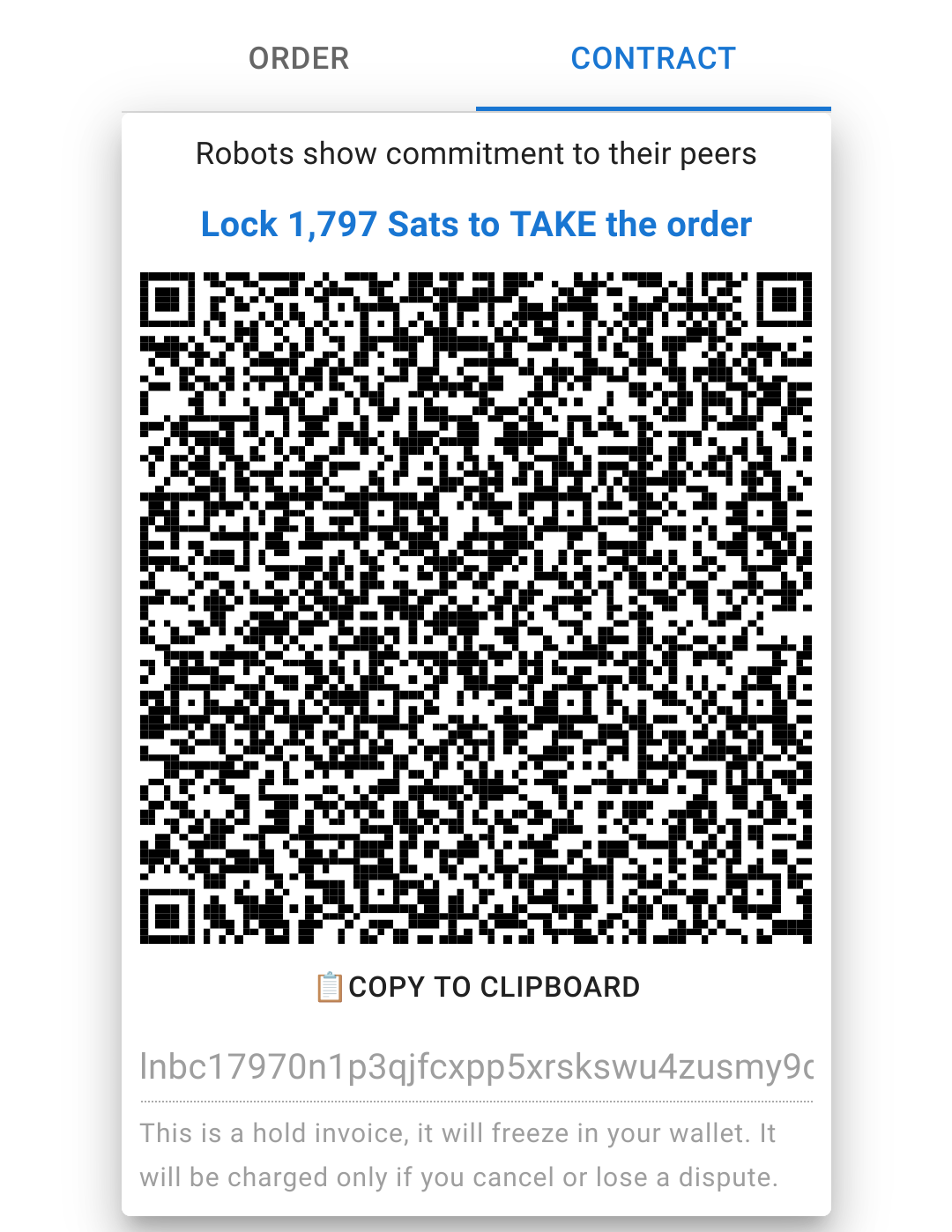
Scan or copy the invoice into your lightning wallet. It might show as a payment that is on transit, freeze or even seemingly break your wallet. You should always check on the RoboSats website whether the bond has been locked (your wallet will probably not tell you! Check wallet compatibility list)

As soon as our bond is locked, RoboSats will ask you to provide a lightning invoice to send you the satoshis. Generate an invoice with the exact amount in your lightning wallet and submit it.
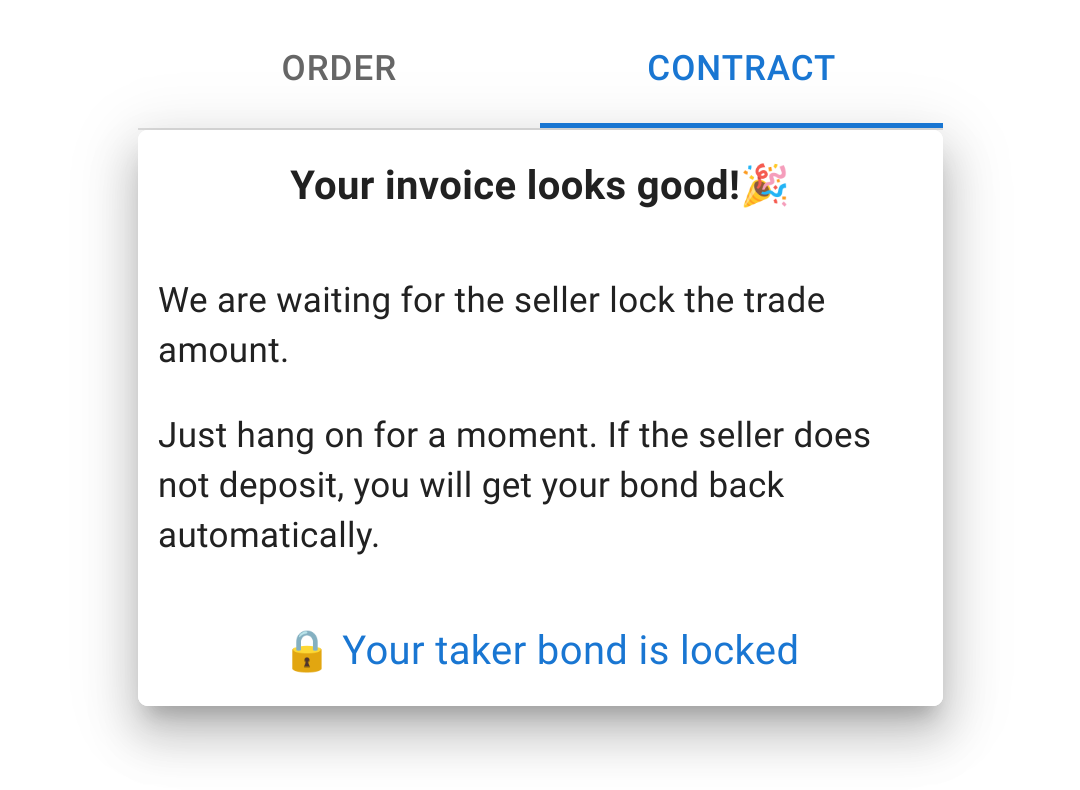
While you are submitting your payout invoice, the seller is asked to lock the trade escrow hold invoice. If you are faster than him, you would have to wait. Otherwise, you would already be able to chat with him.
There is a time limit of 3 hours to submit the invoice (buyer) and lock the trade escrow (seller). If the time runs out, the order will expire and the robot who did not follow with the contract obligations will lose the bond. This is a mechanism that helps prevent fake order spamming, wasting time of counterparts and DDOSing the order book.
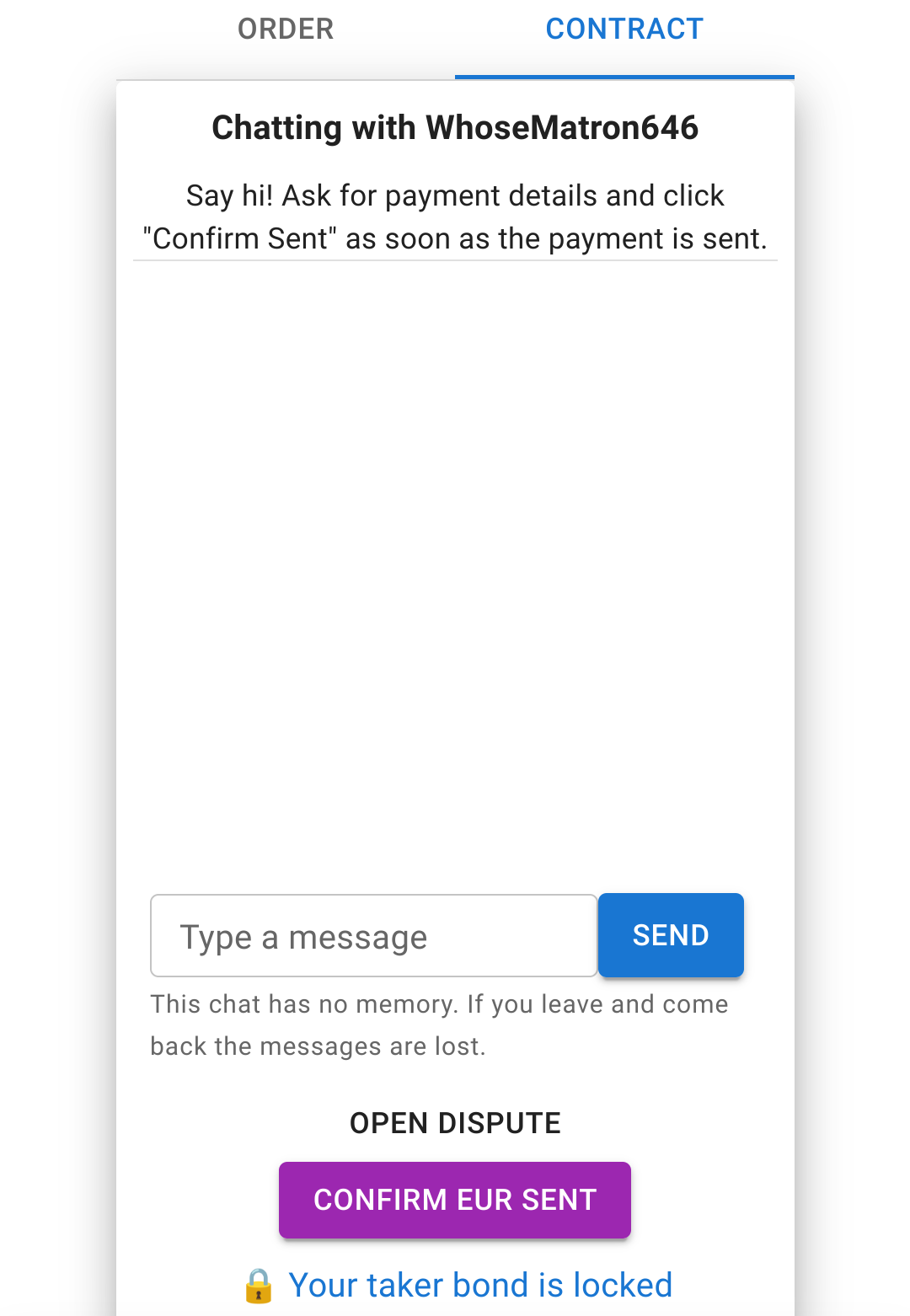
As soon as the seller locks the satoshis, it is safe to send the fiat currency! As a buyer, you will have to ask the seller for the details to send fiat. Only share the strictly needed information about yourself to not compromise your privacy. The chat is end-to-end encrypted with each robot’s PGP key — you can export the full log from the chat interface if you need evidence for a dispute.
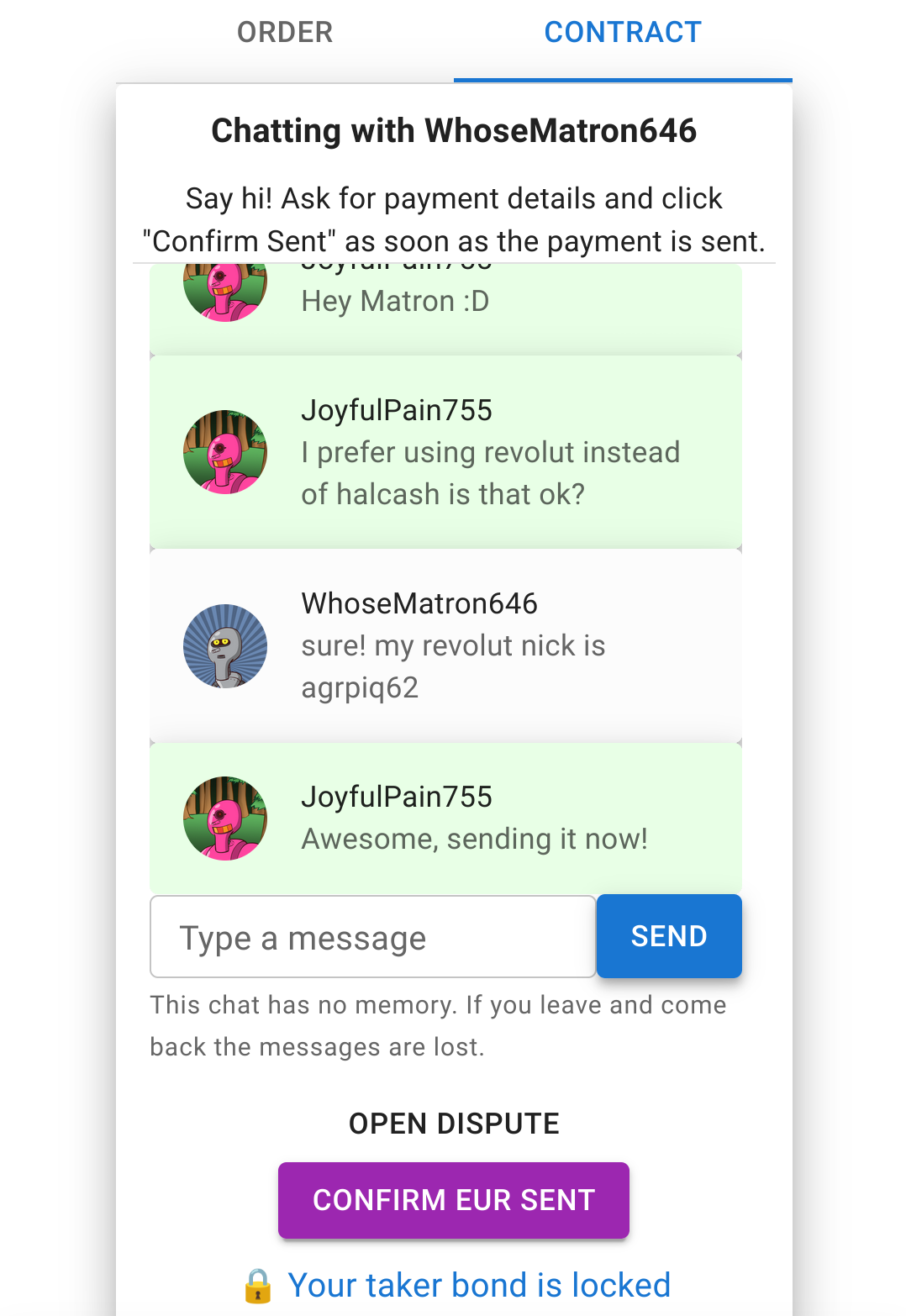
There is a time limit of 24 hours to complete the fiat exchange. If the time runs out, the order will expire and a dispute will be opened automatically. To avoid order expiration, use always instant fiat payment methods. Slow methods like sending cash by ordinary mail are very likely to trigger a dispute.
As soon as you have sent the fiat, you should tap on “Confirm fiat sent” button. After that, the seller will have to confirm the fiat was received. As soon as he confirms the trade is finished and you will be paid out to your lightning wallet. You might see that it is “sending satoshis to buyer” but usually it is so fast you will simply see this screen. Enjoy your sats!
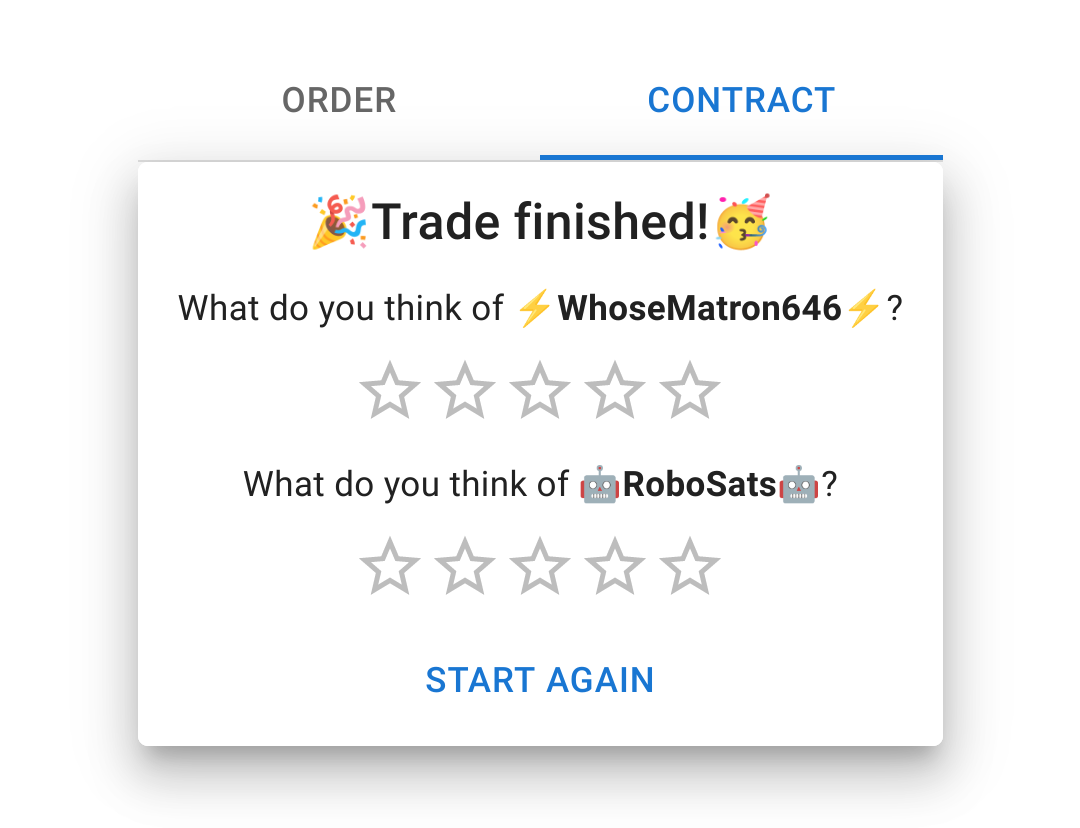
Rating the platform and leaving tips for improvement in our Telegram group or Github Issues is super appreciated!
Walkthrough-2: Making an order as a seller
It might happen that there are no active orders for the positioning and currency you want. In this case, there is no orders to SELL bitcoin for GBP.
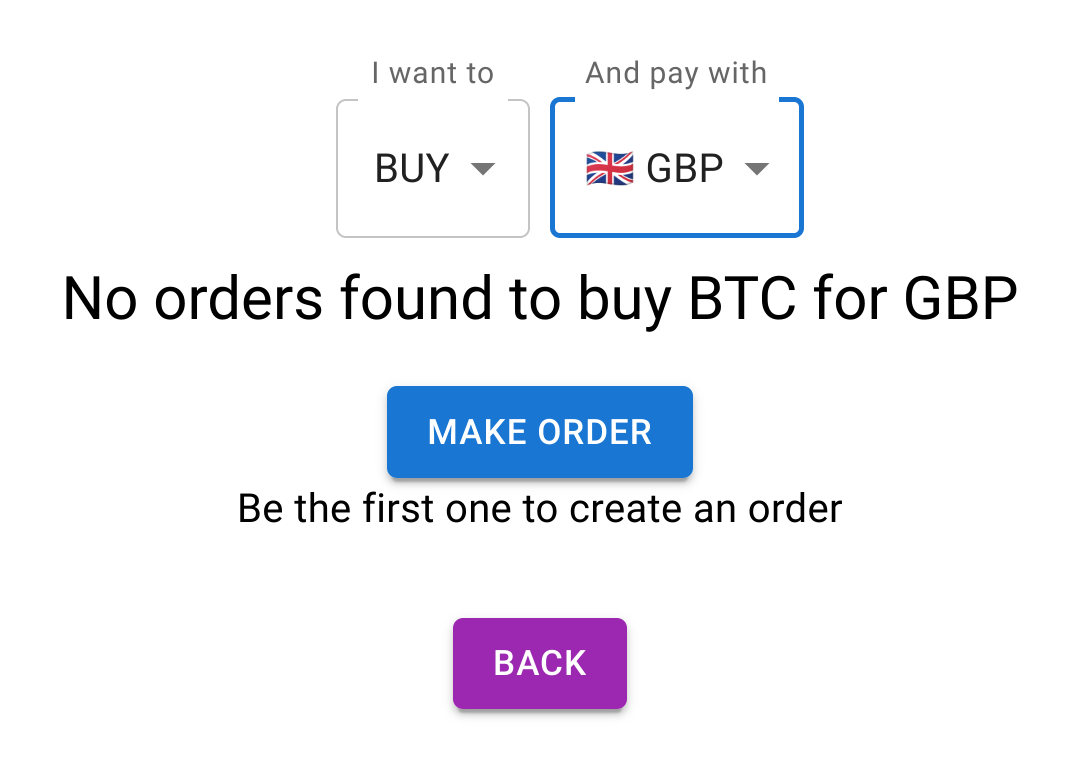
We can create the order exactly has we want it. But mind that you need to publish an order that others want to take too!
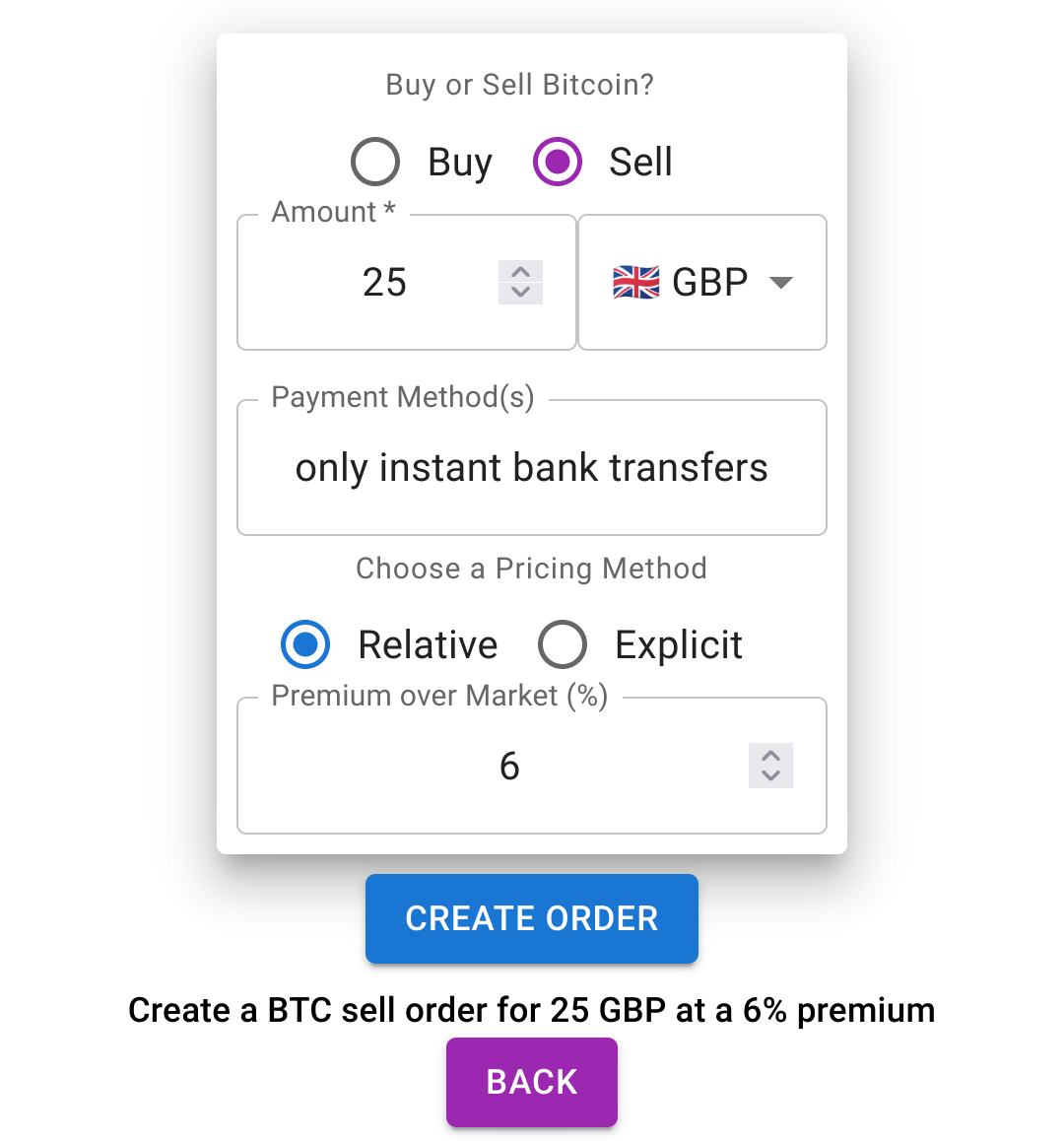
In the maker page you are only required to enter the currency, order type (buy/sell) and amount. However, it is best practice to specify the payment methods you allow. It might be also helpful to set a premium/discount for your order to be taken faster. Remember that as a seller you can incentivze buyers to take your order by lowering the premium. If there are too many buyers, however, you can increase the premium to have a trading profit. Alternatively, you can set a fixed amount of Satoshis.
Limits: in RoboSats an order cannot be smaller than 20,000 Satoshis. It cannot be larger than 4,000,000 Satoshis in order to avoid lightning routing failures.
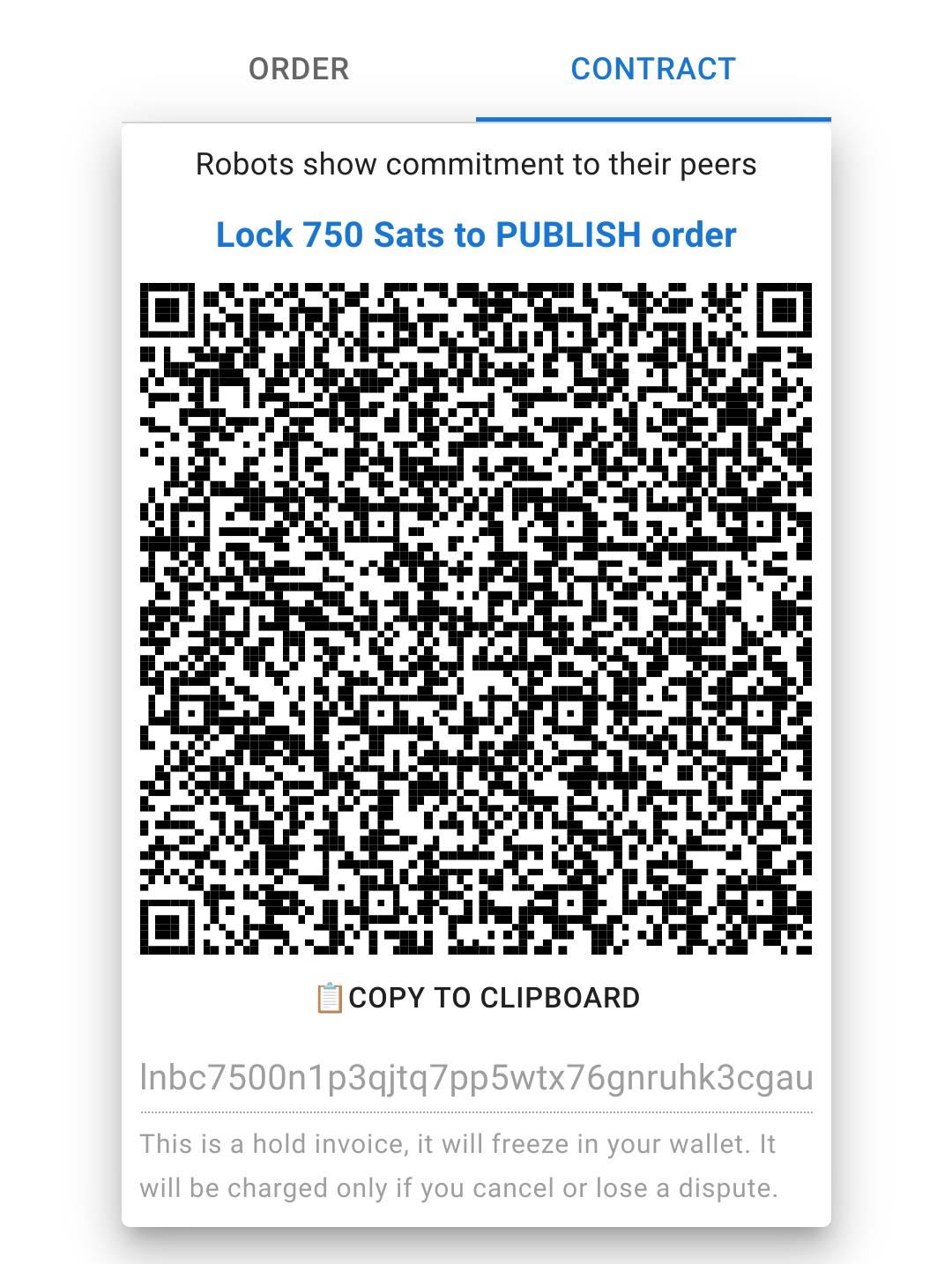
You have to copy or scan the invoice with your lightning wallet in order to lock your fidelity maker bond (just 1% of the trade amount)). By locking this bond, the takers know you can be trusted and are committed to follow with this trade. In your wallet it might show as a payment that is on transit, freeze or even seemingly break your wallet. You should always check on the RoboSats website whether the bond has been locked (your wallet will probably not tell you! Check wallet compatibility list)
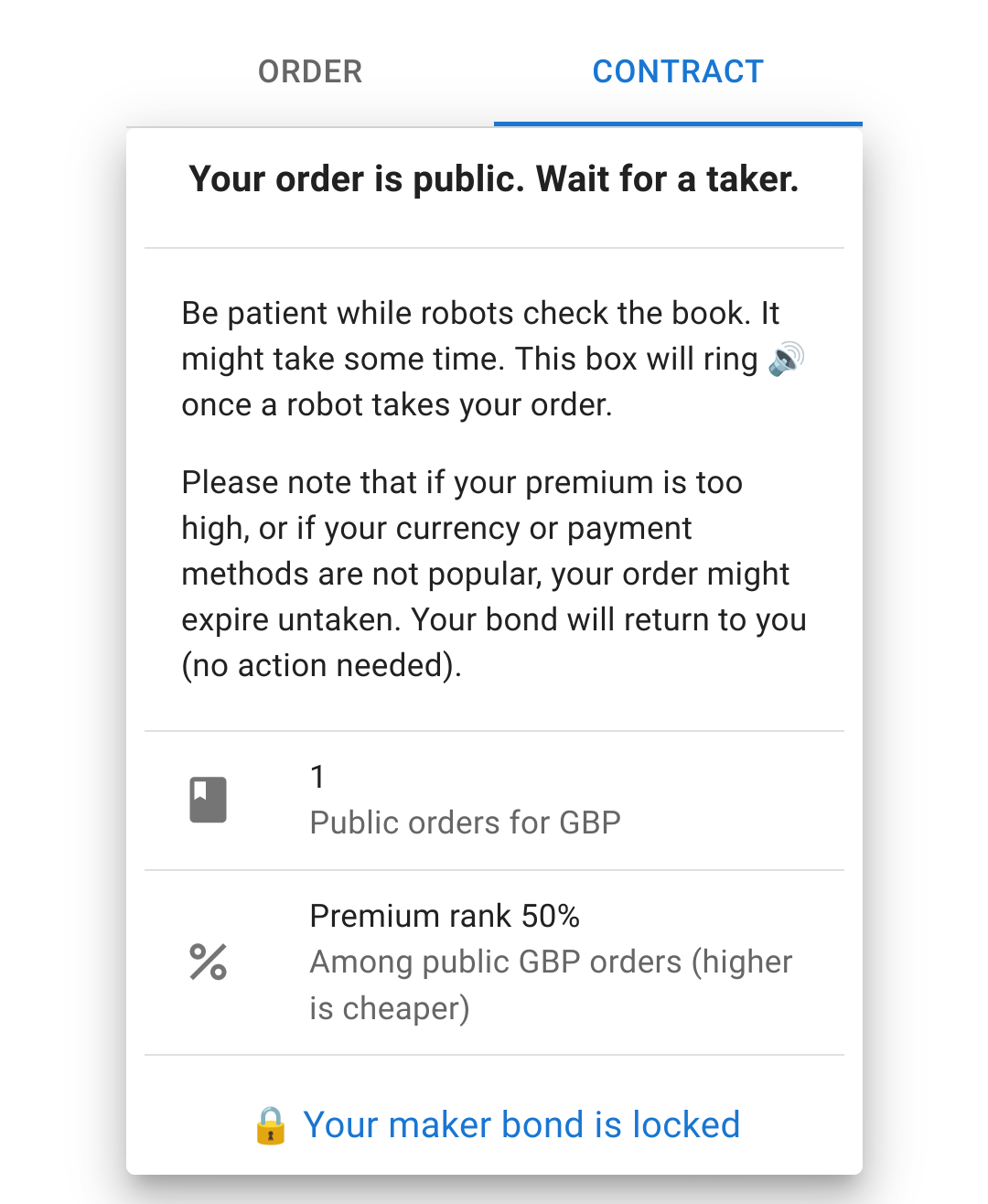
Your order will be public for 24 hours. You can check the time left to expiration by checking the “Order” tab. It can be canceled at any time without penalty before it is taken by another robot. Keep the contract tab open to be notified with this sound. It might be best to do this on a desktop computer and turn on the volume, so you do not miss when your order is taken. It might take long! Maybe you even forget! You can also enable telegram notifications by pressing “Enable Telegram Notification” and then pressing “Start” in the chat. You will receive a welcome message as confirmation of the enabled notifications. Another message will be sent once a taker for your order is found.
Note: If you forget your order and a robot takes it and locks his fidelity bond, you risk losing your own fidelity bond by not fulfilling the next contract steps.
In the contract tab you can also see how many other orders are public for the same currency. You can also see how well does your premium ranks among all other orders for the same currency.
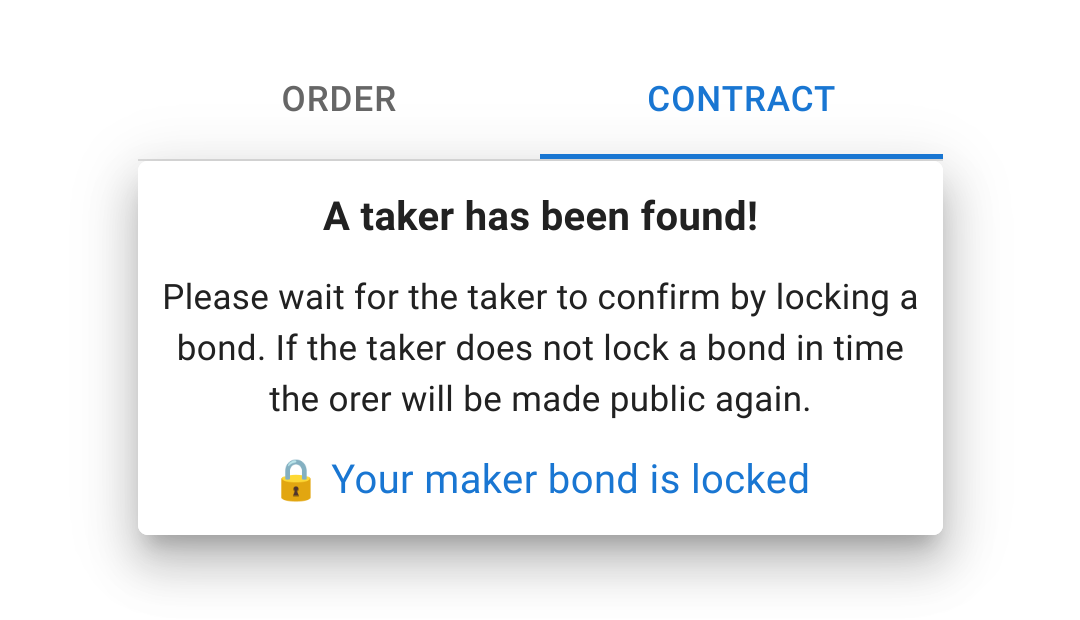
Hurray, someone took the order! They have less than 4 minutes to lock a taker fidelity bond, if they do not proceed, your order will be made public again automatically.
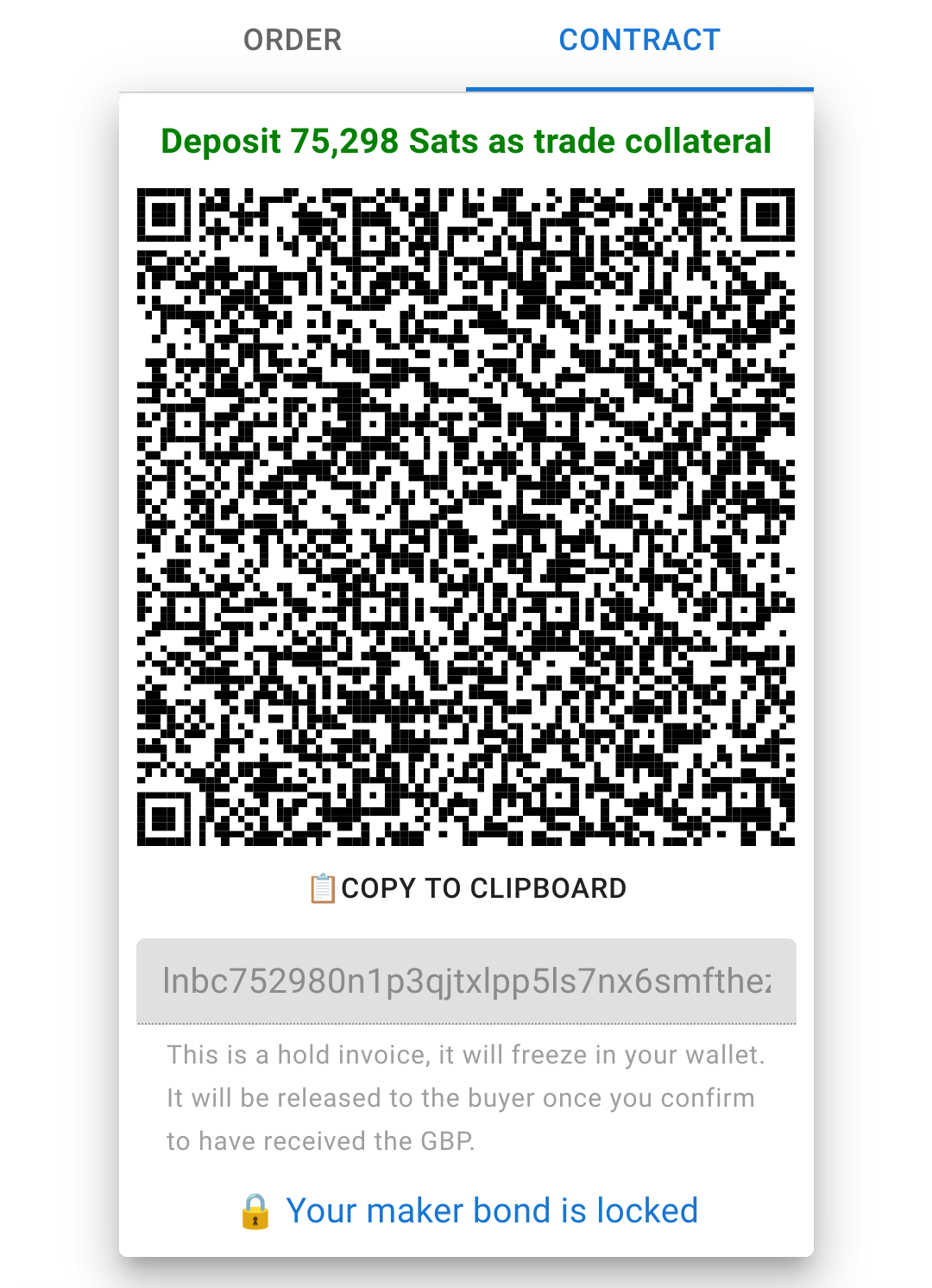
As soon as the taker locks the bond, you will have to lock the trade escrow. This is a lightning hold invoice and will also freeze in your wallet. It will be released only when you confirm you received the fiat payment or if there is a dispute between you and the taker.
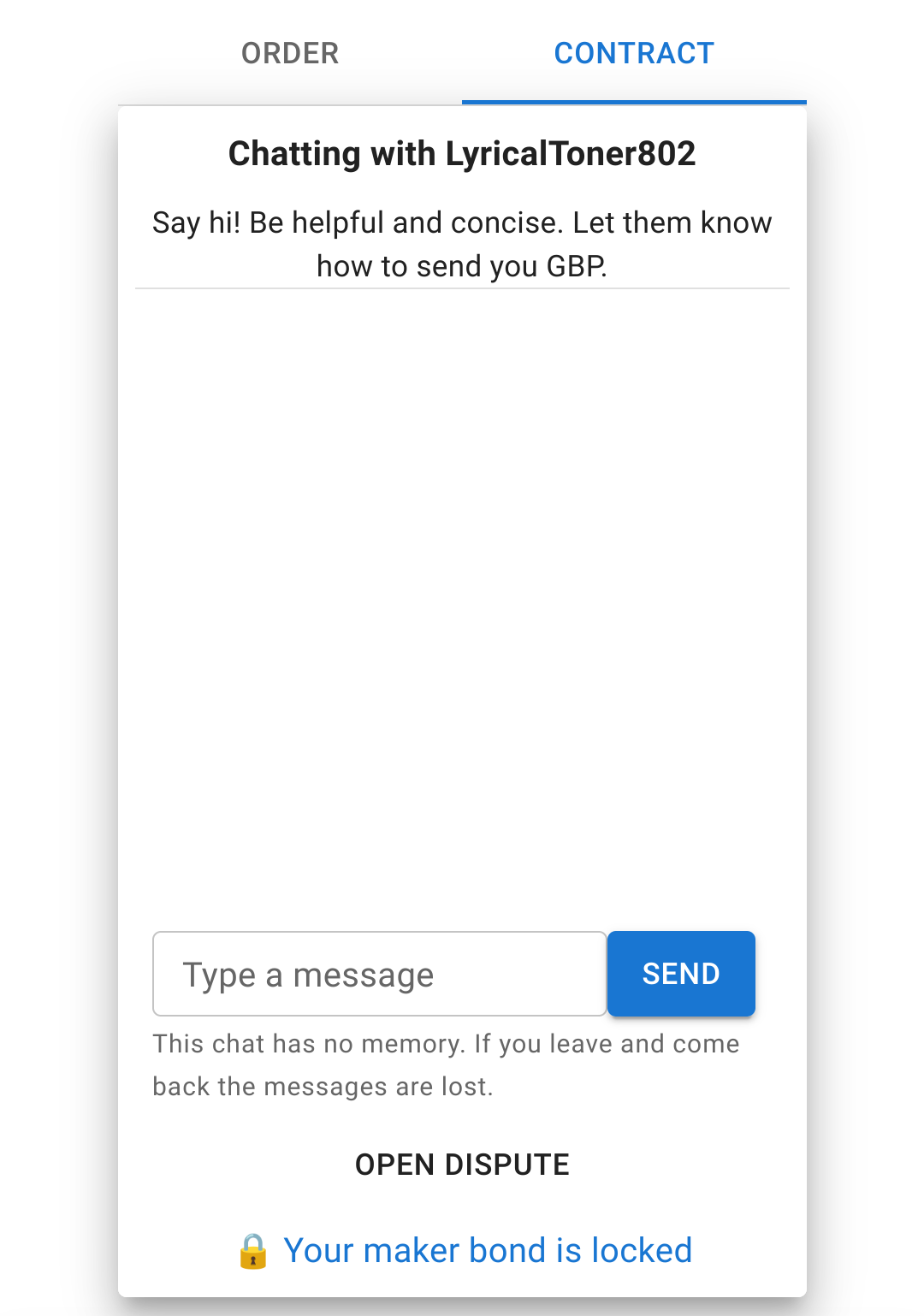
Once you lock the trade escrow and the buyer submit the payout invoice it is safe to send fiat! Share with the buyer the minimal information needed to send you fiat.
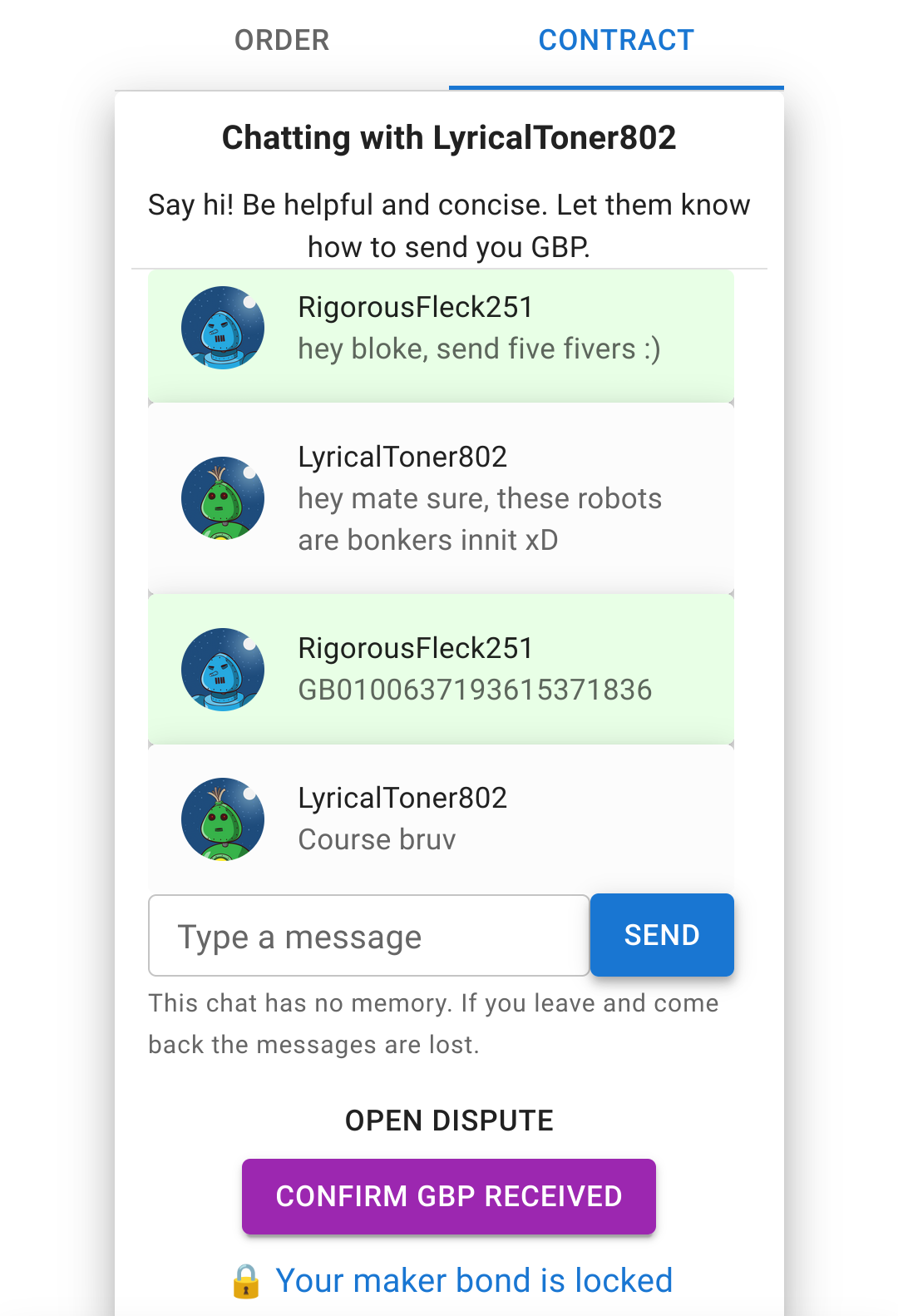
The buyer has just confirmed he did his part! Now check until the fiat is in your account.
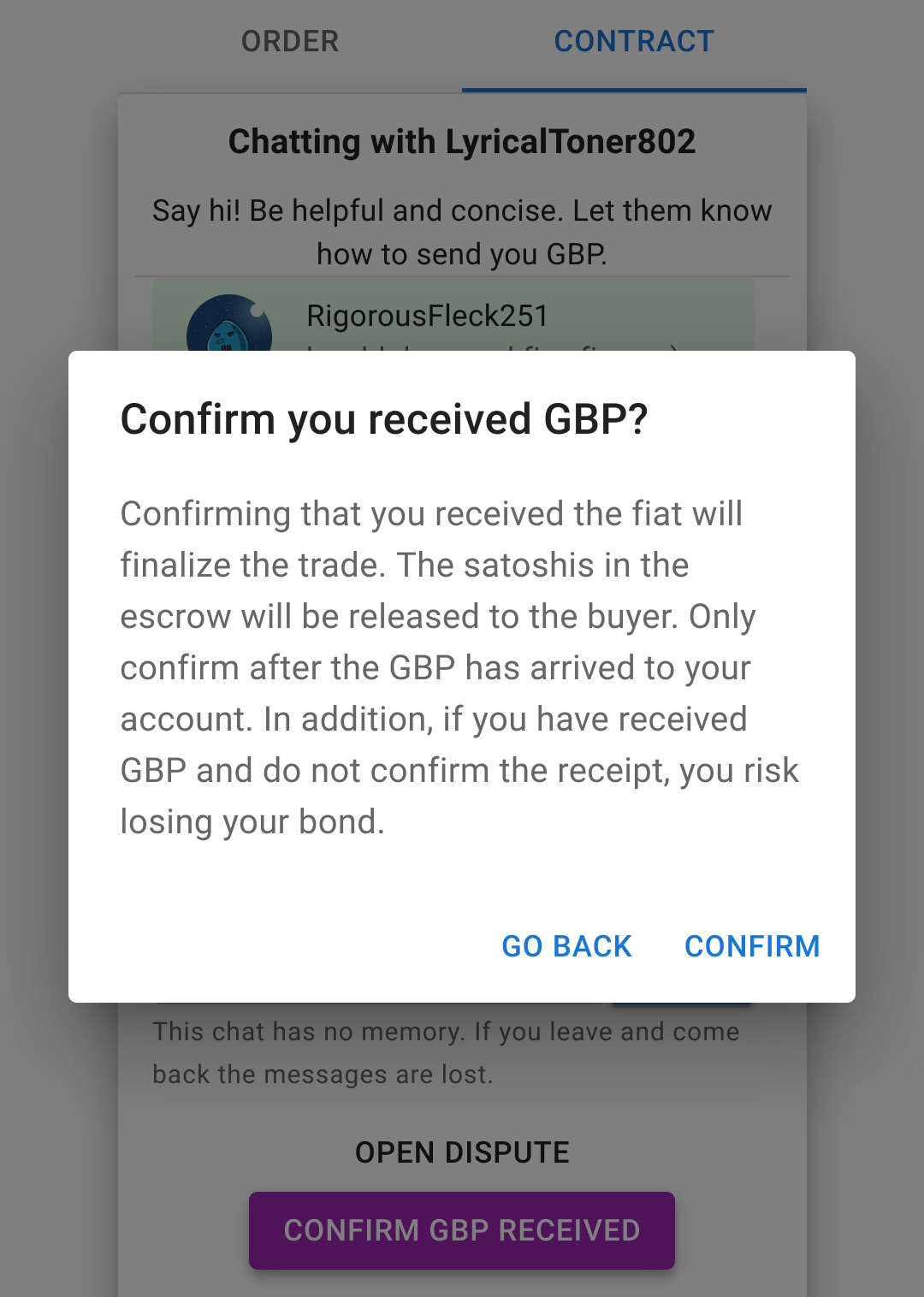
By confirming that you received the fiat, the escrow will be charged and sent to the buyer. So only do this once you are 100% sure the fiat is with you!
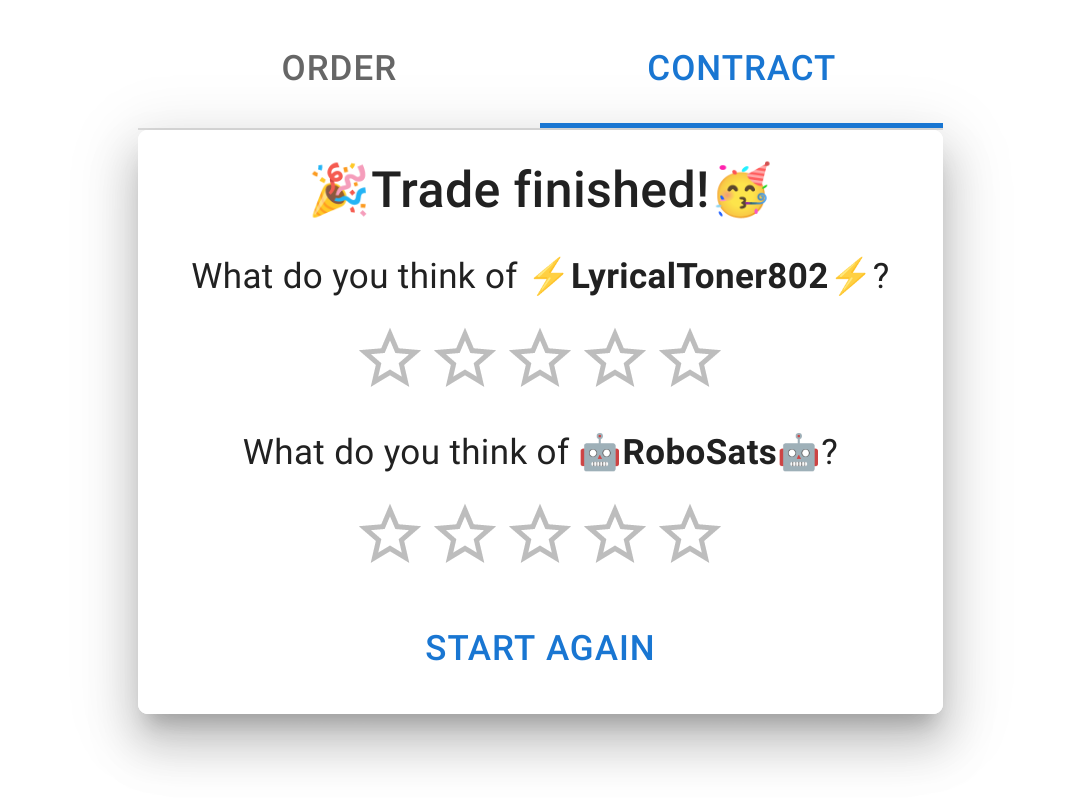
All done!! :D
Collaborative cancellation
After the trade escrow has been posted and before the buyer confirms he sent the fiat it is possible to cancel the order. It might just happen that you both do not have a common way to send and receive fiat after all. You can agree to tap on the “Collaborative cancel” button. After the “Fiat sent” button is pressed by the buyer, the only way to cancel an order is by opening a dispute and involving the staff.
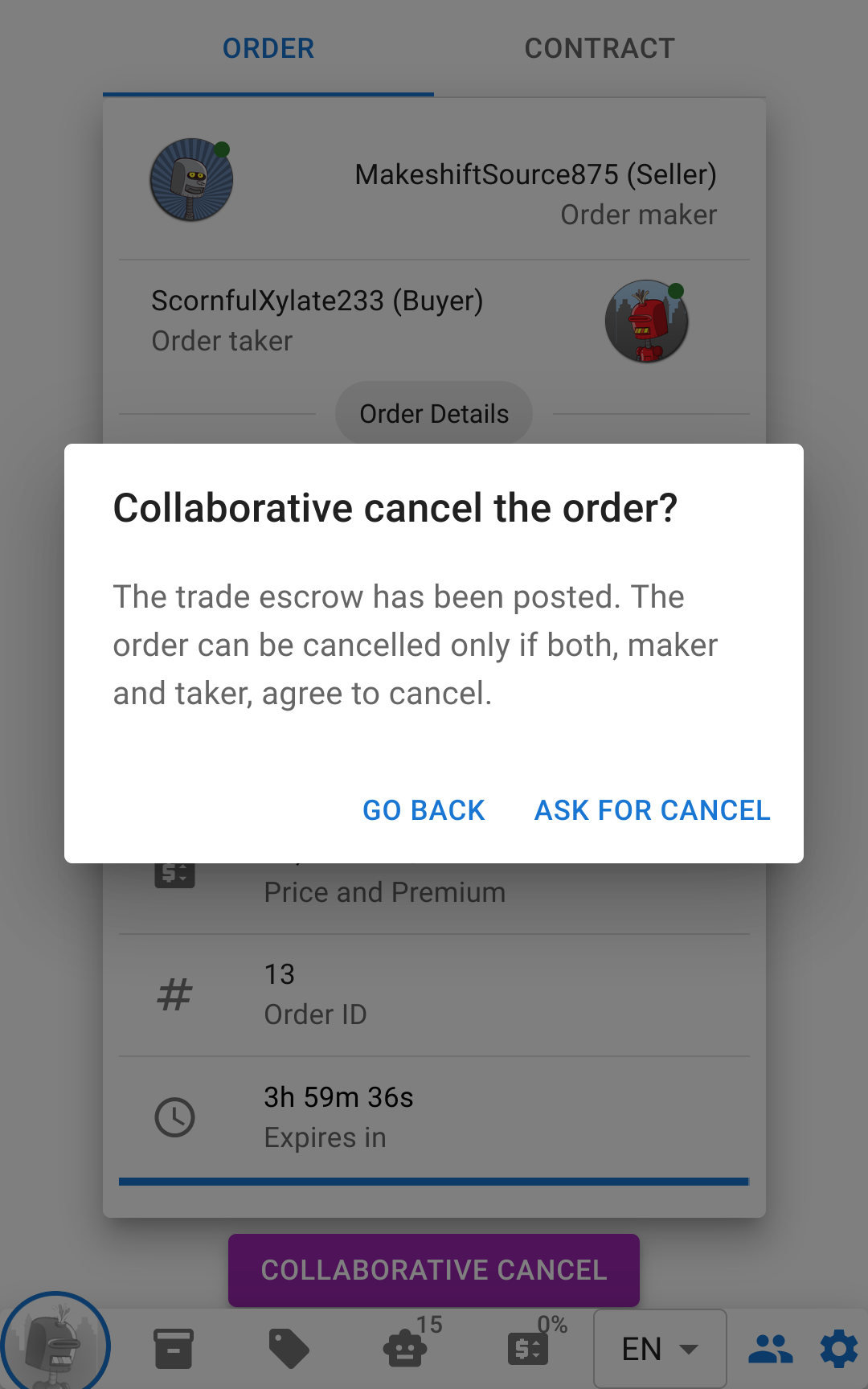
This is totally not recommended, one of the two traders would lose his fidelity bond except in exceptional cases (up to the discretion of the staff)
Disputes
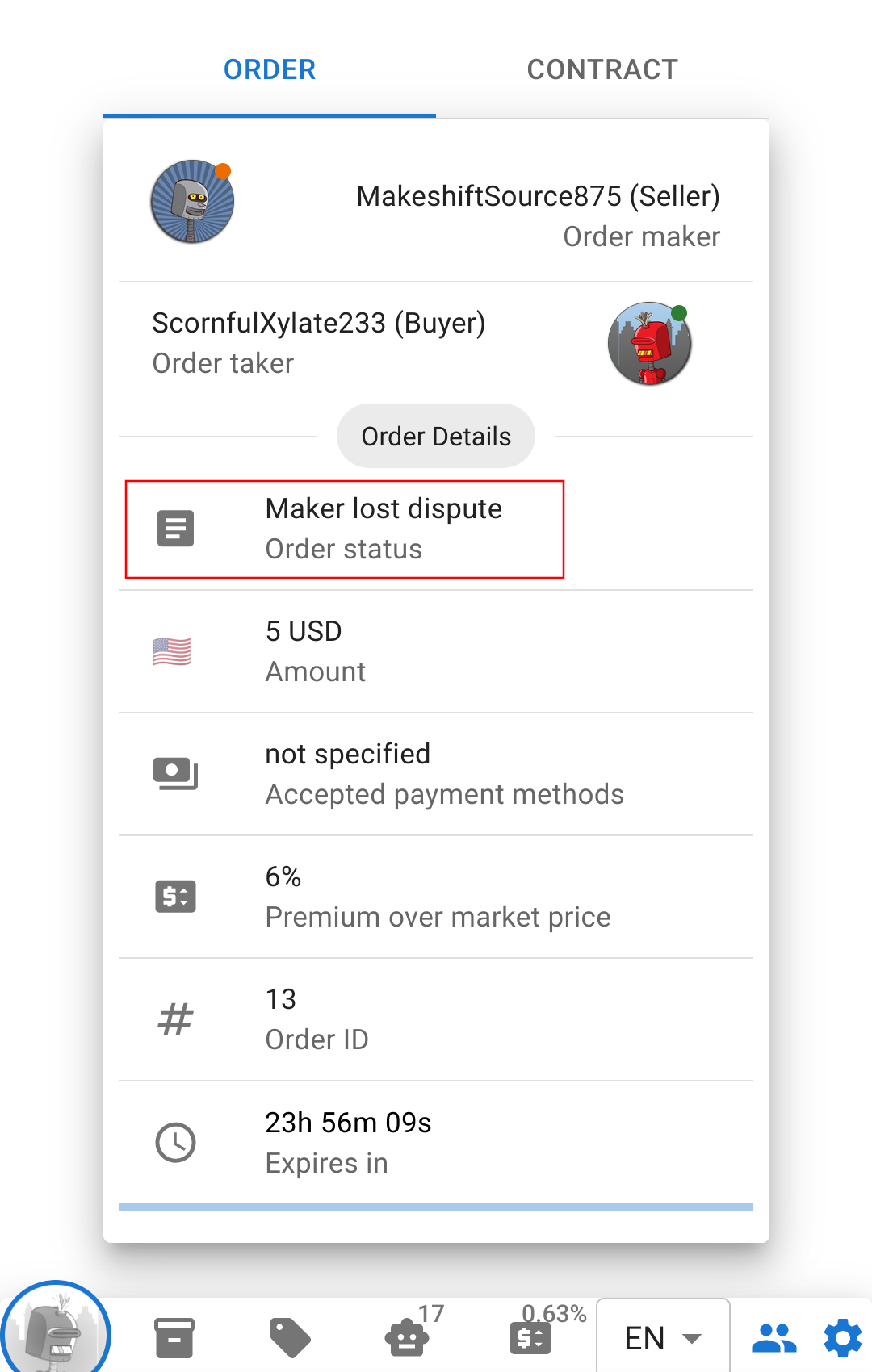
Misunderstandings happen. But also, there might be people willing to try to scam others. In this case MakeshiftSource875 thought he could get away by not confirming he received the fiat, as if he was going to be able to keep the satoshis.
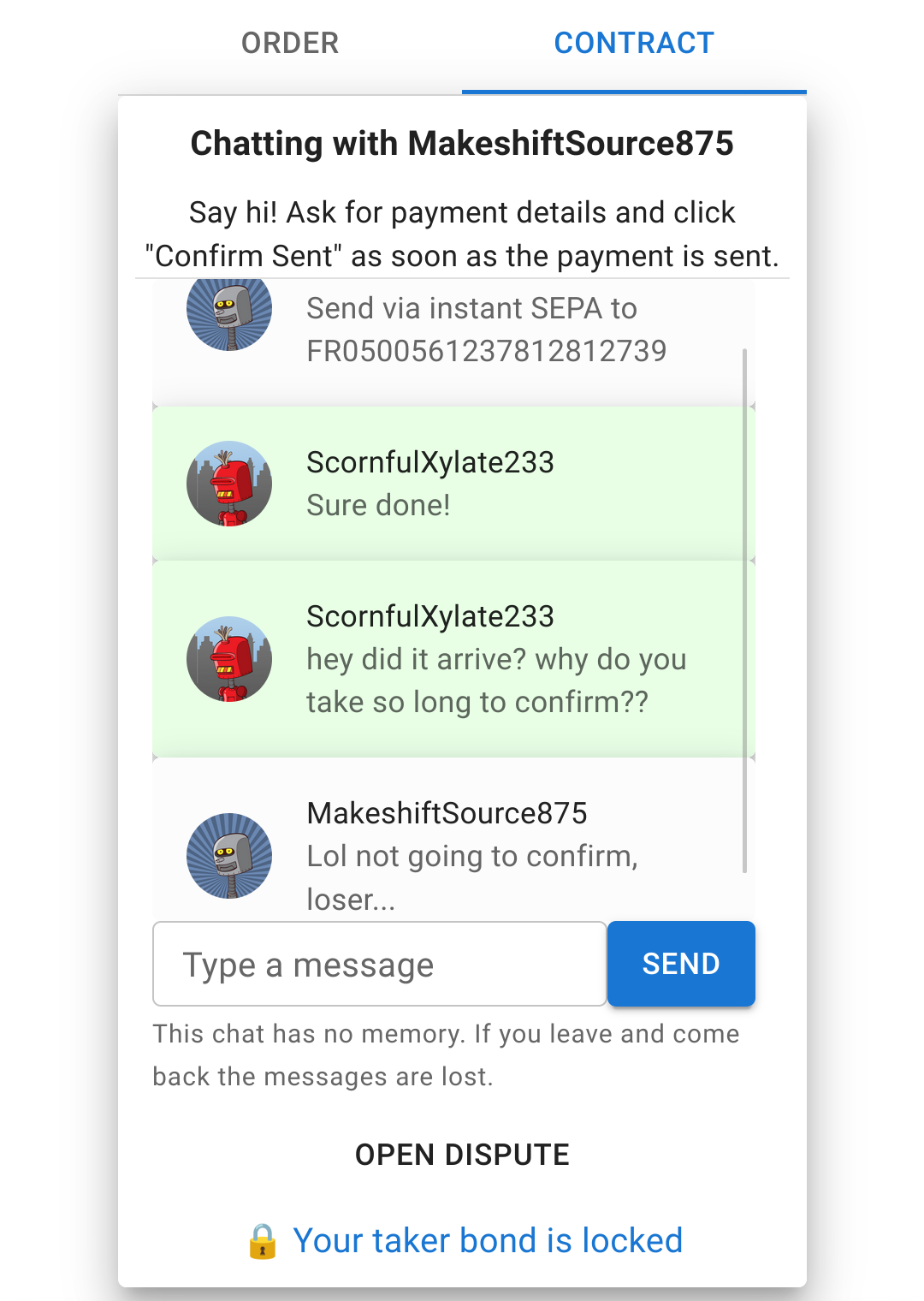
This is in fact not possible, as a dispute will be automatically open at expiration. However, if you know something fishy is going on, you should open a dispute.
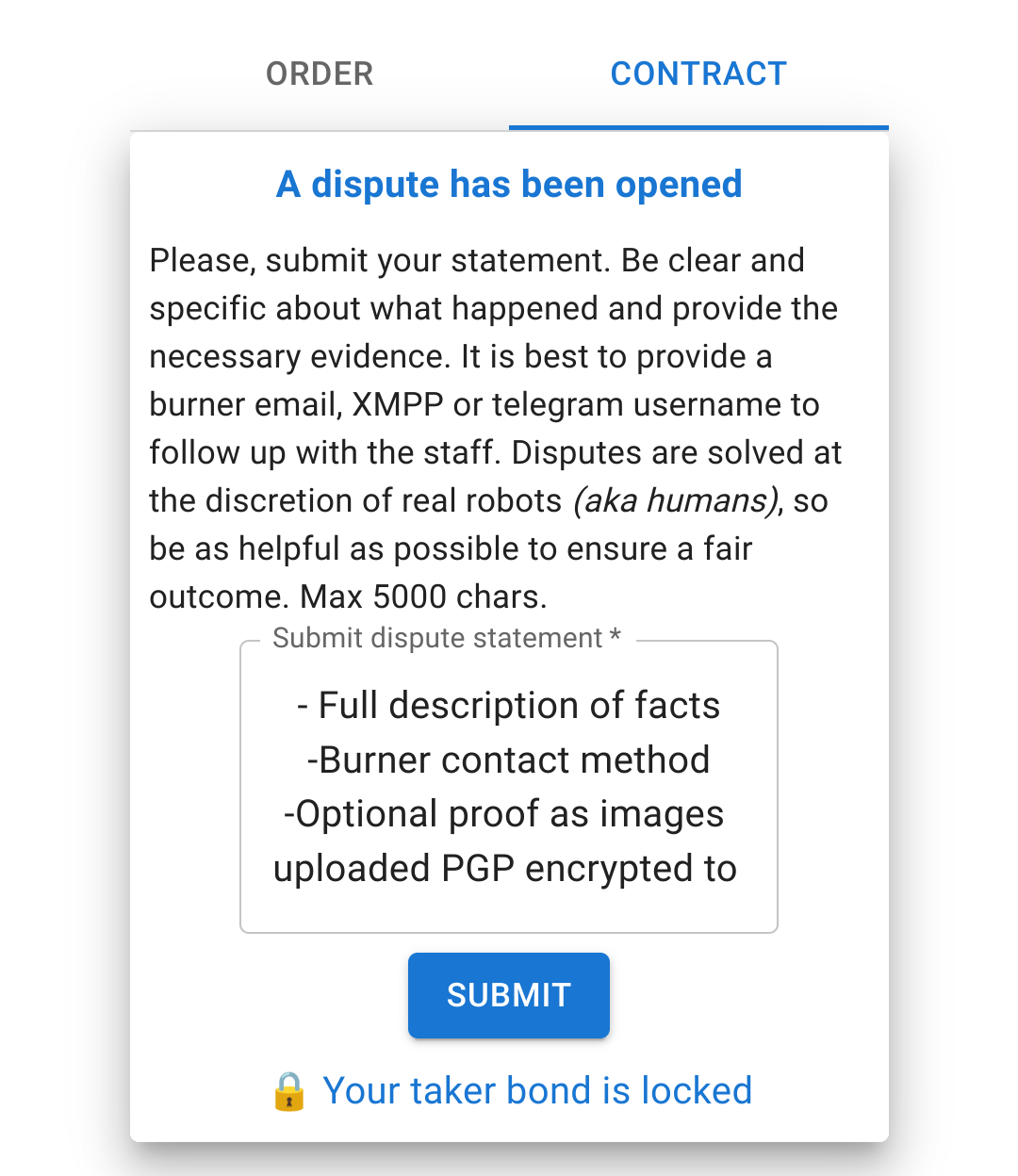
When a dispute is opened, the app lets you submit your statement and a contact method so the staff can reach you. Write down a full statement of facts. The staff cannot read your private chat to judge what happened. It is useful to export the chat log (JSON) and attach images/screenshots; for maximum privacy these can be encrypted via PGP and uploaded to any anonymous file sharing system.
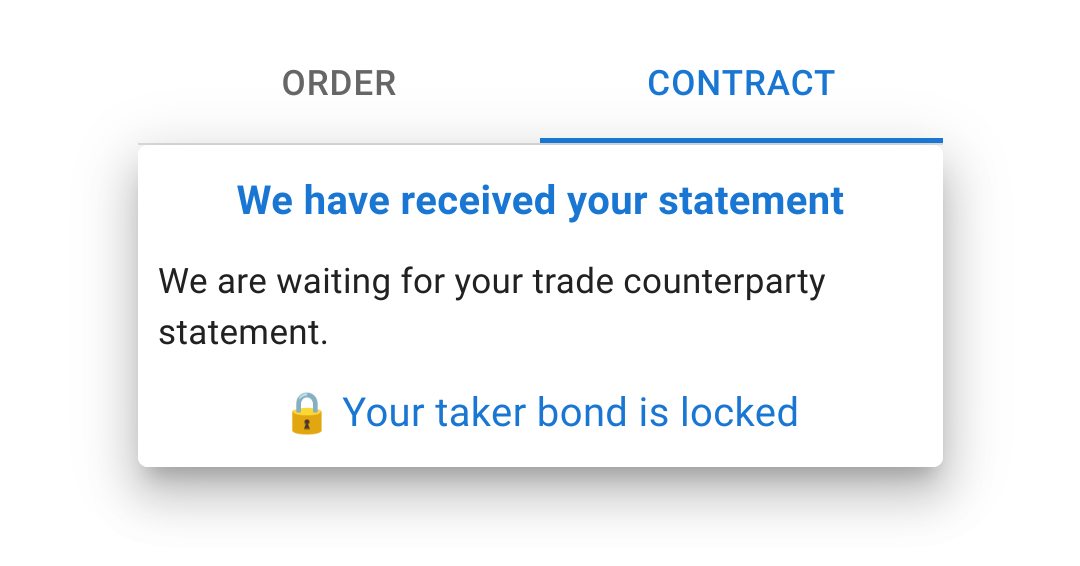
Once the staff has resolved the dispute, the final order status will display the resolution. Make sure to check on the contact method provided to the staff. If you are a dispute winner, the staff will ask you again for a lightning network invoice to send the payout+bond (Your old invoice is probably expired!)